

Clean up your photo library one swipe at a time
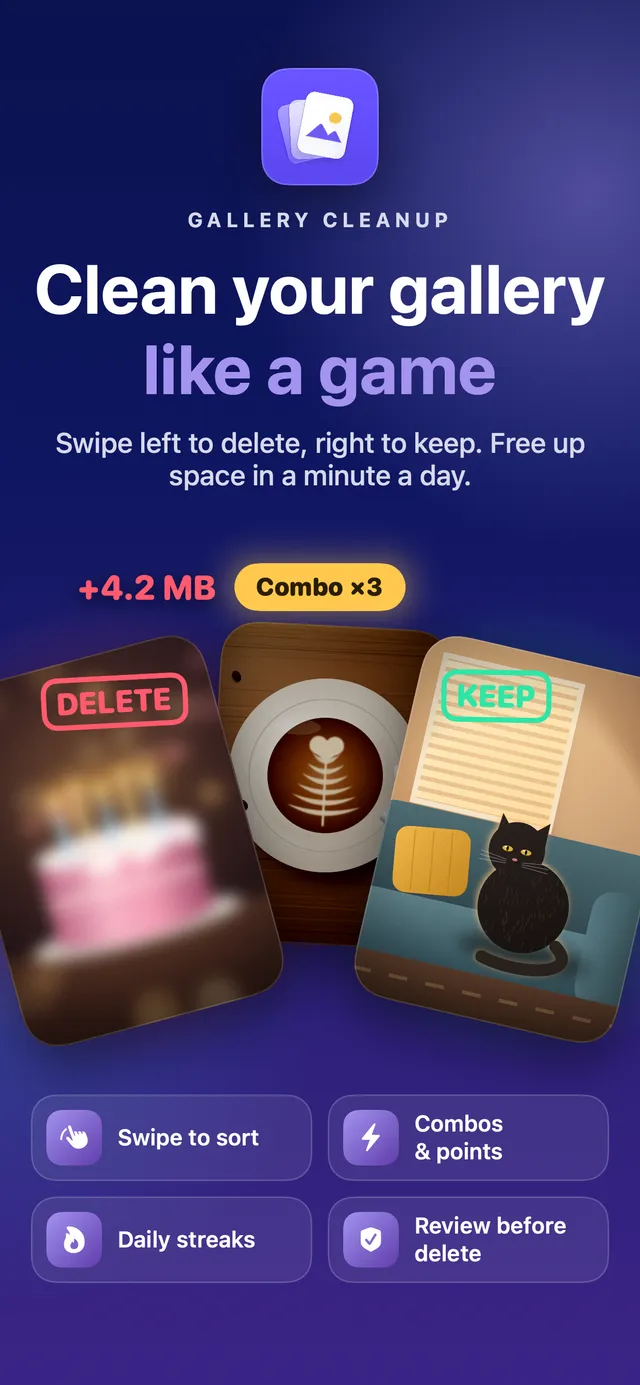
Gallery CleanUp deals your photos and videos as cards in rounds of about a minute. Swipe left to delete, right to keep, and confirm at the end of the round. Nothing is deleted before that.
- Optional Pro for unlimited rounds
- No account needed
- Photos stay on your device
Screenshots
A round, from first swipe to freed space
Features
What the app does
Everything happens on your iPhone or iPad. Nothing is deleted until you confirm, and iOS keeps deleted items in Recently Deleted for 30 days.
Swipe through your gallery
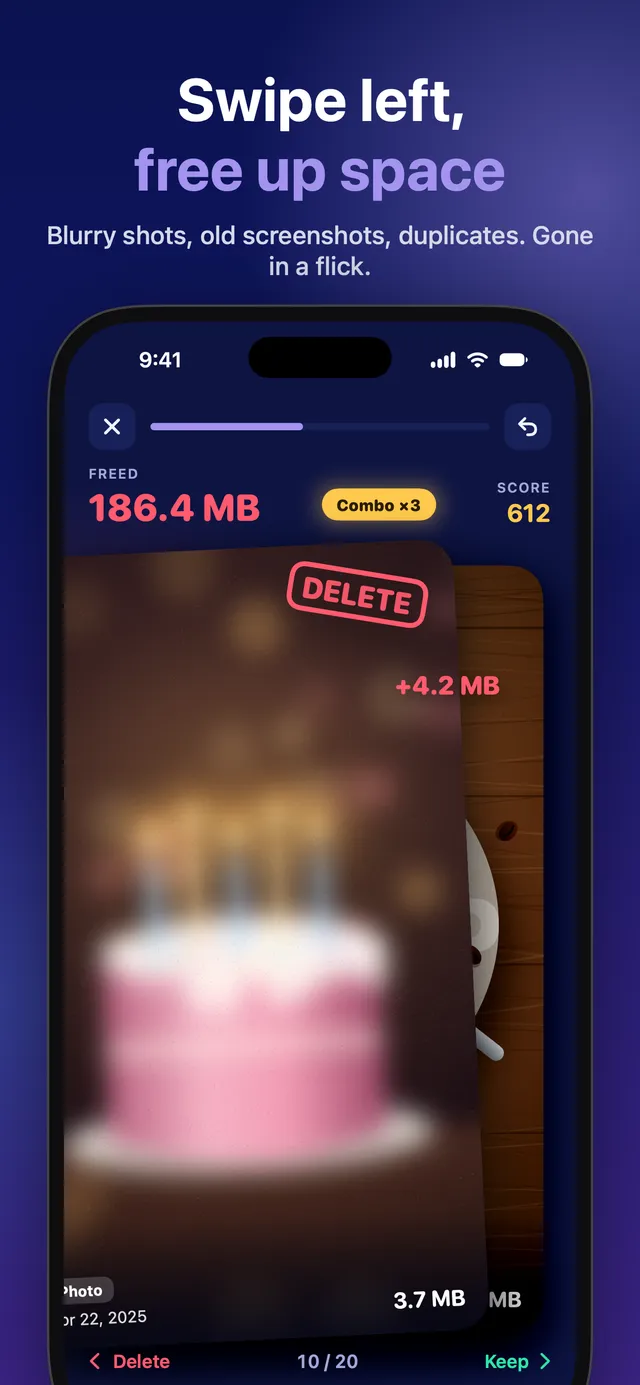
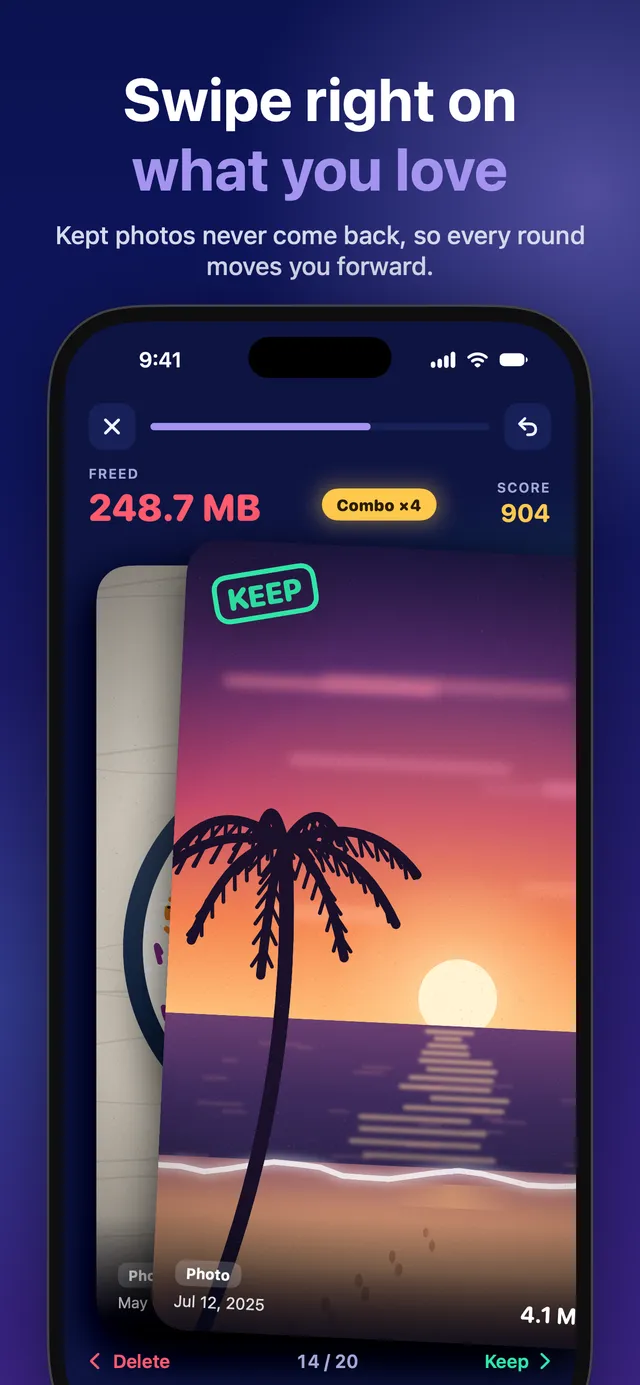
One photo or video at a time. Swipe left to delete, right to keep. Hold a video to play it, and undo a swipe if you change your mind.
Nothing goes until you confirm
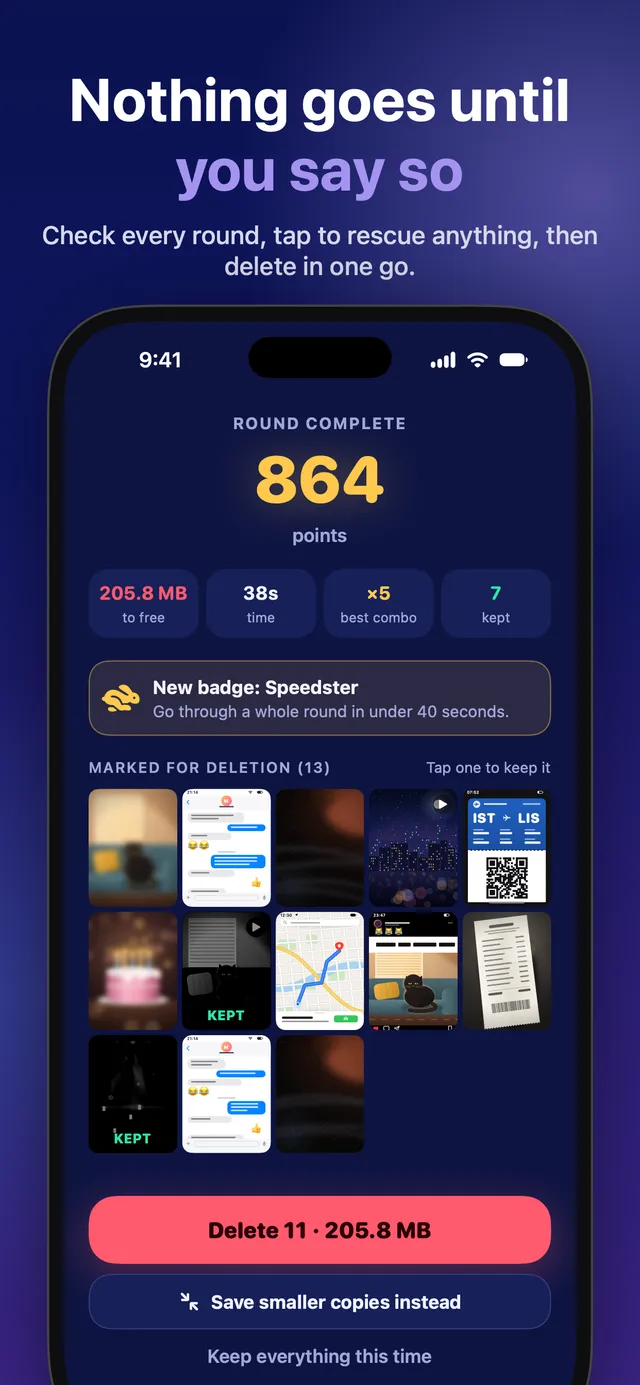
At the end of a round you see everything you marked. Tap one to keep it after all, then delete the rest with a single iOS confirmation. Deleted items stay in Recently Deleted for 30 days.
Smaller copies instead of deleting
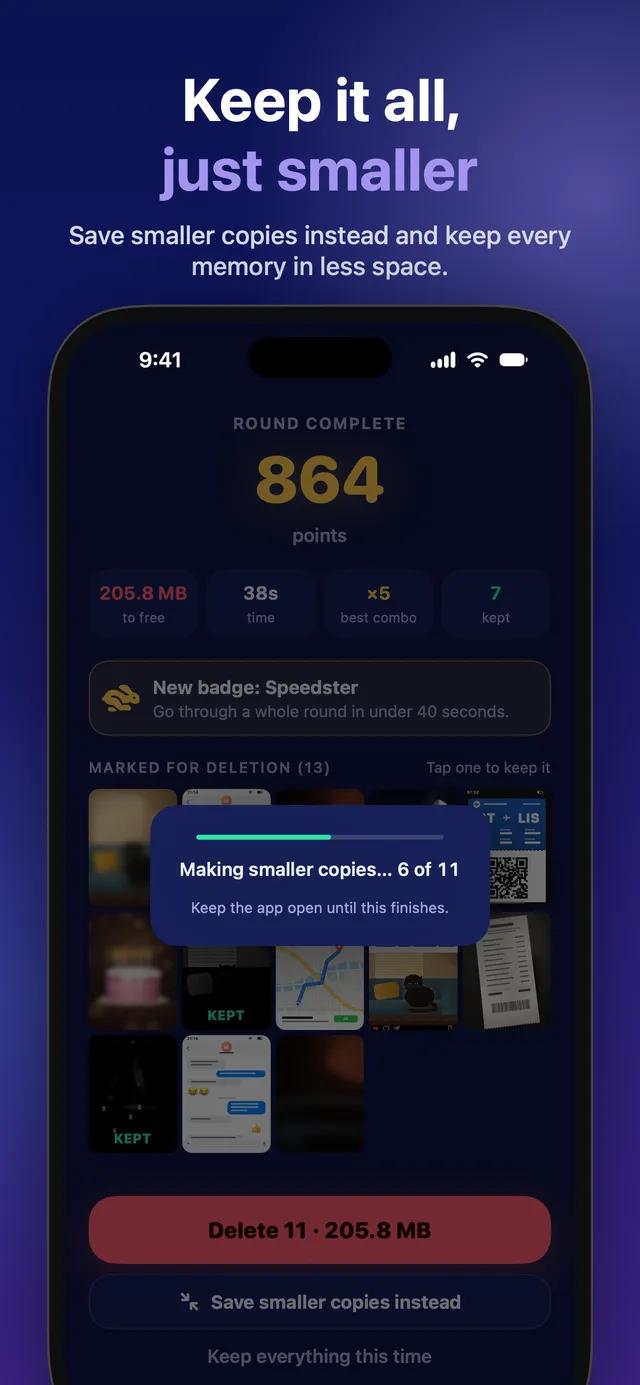
Keep a photo or video but take up less space: the app saves a smaller HEIC or HEVC copy with the same date, place and favourite mark, and the original goes to Recently Deleted.
Five decks
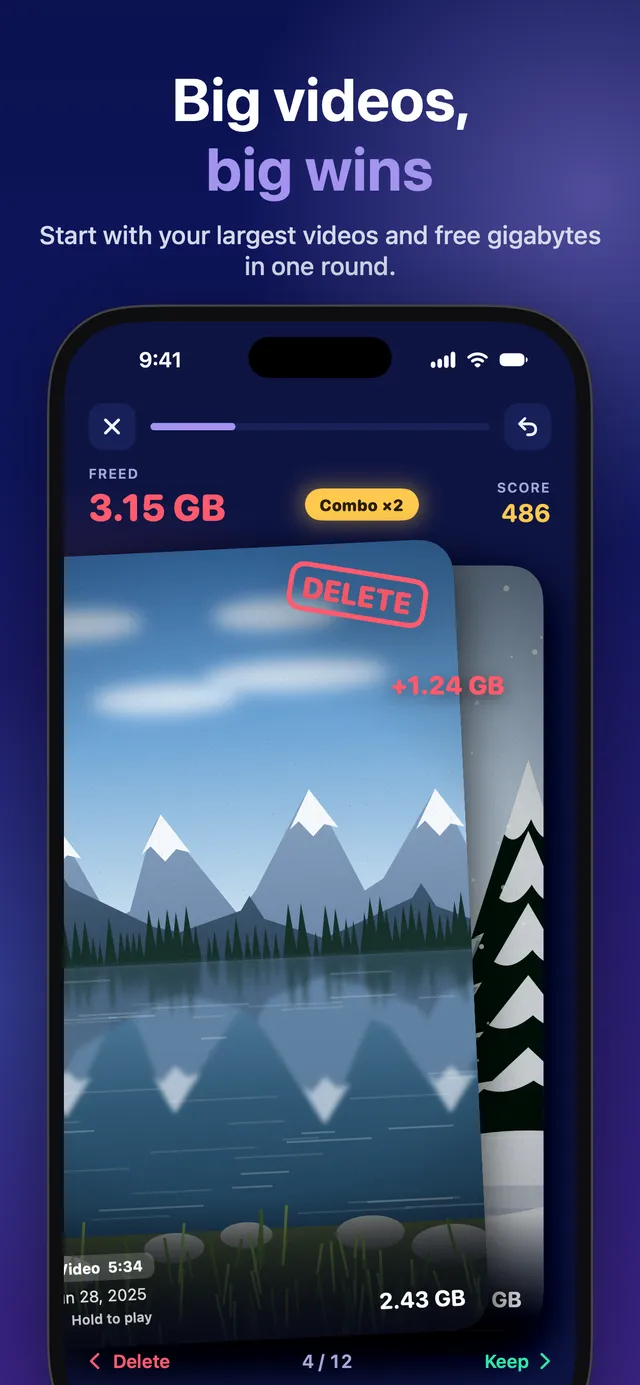
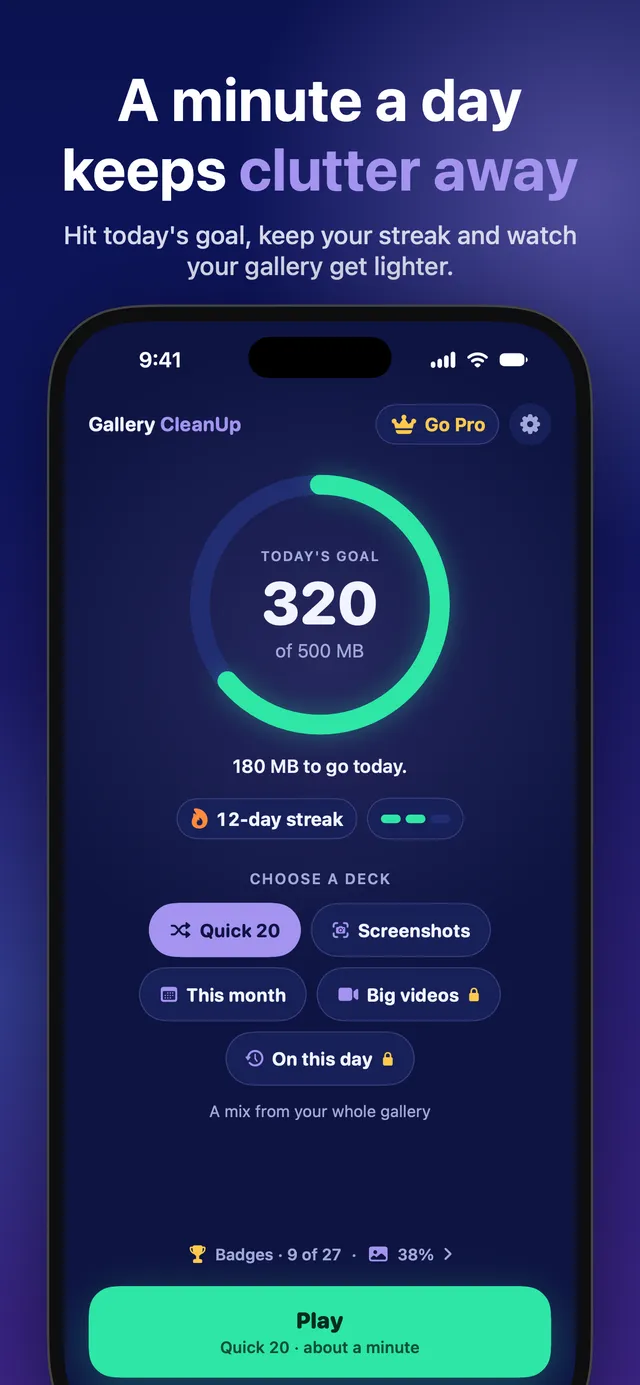
Quick 20 mixes your whole gallery. Screenshots starts with the oldest, This month covers what you just shot, Big videos starts with the largest files, and On this day shows this date in past years.
See the space you free
Every card shows its size, a counter adds up what the round will free, and the home screen shows your all-time total and how much of your gallery you have gone through.
Daily goal, streak and badges
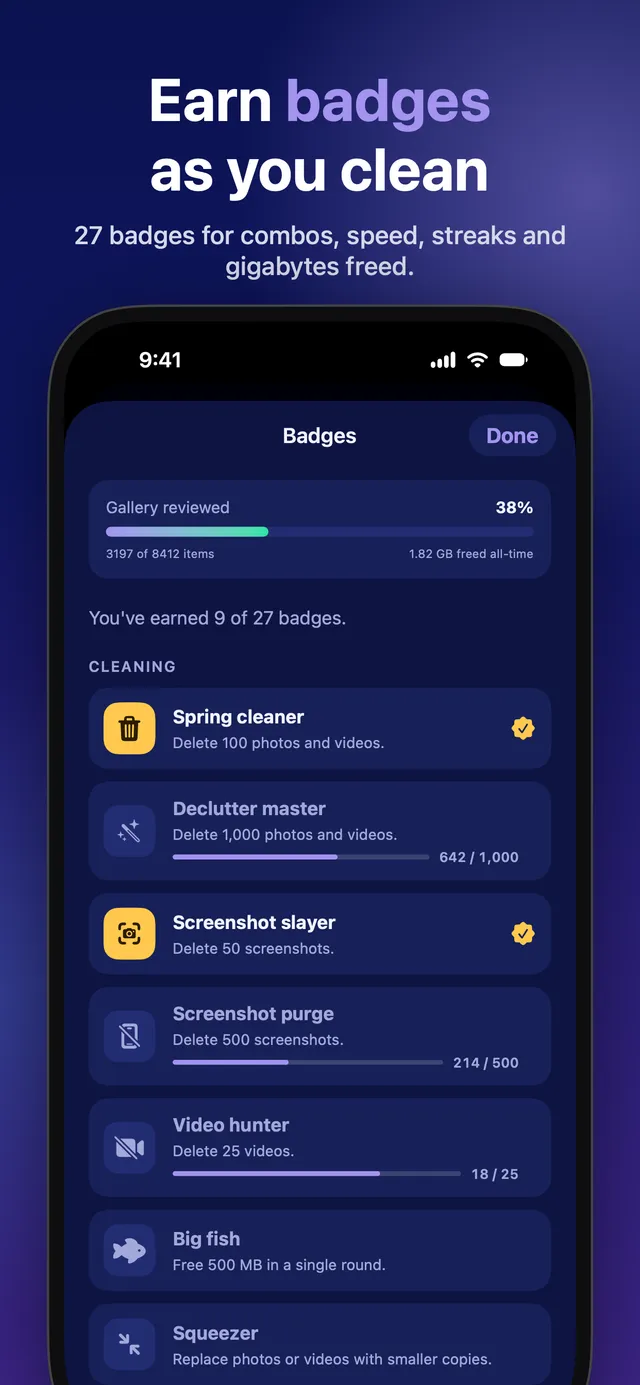
Set a daily goal of 250 MB, 500 MB or 1 GB, keep a day streak going, and earn 27 badges for rounds, combos, space freed and habits.
Reminders, if you want them
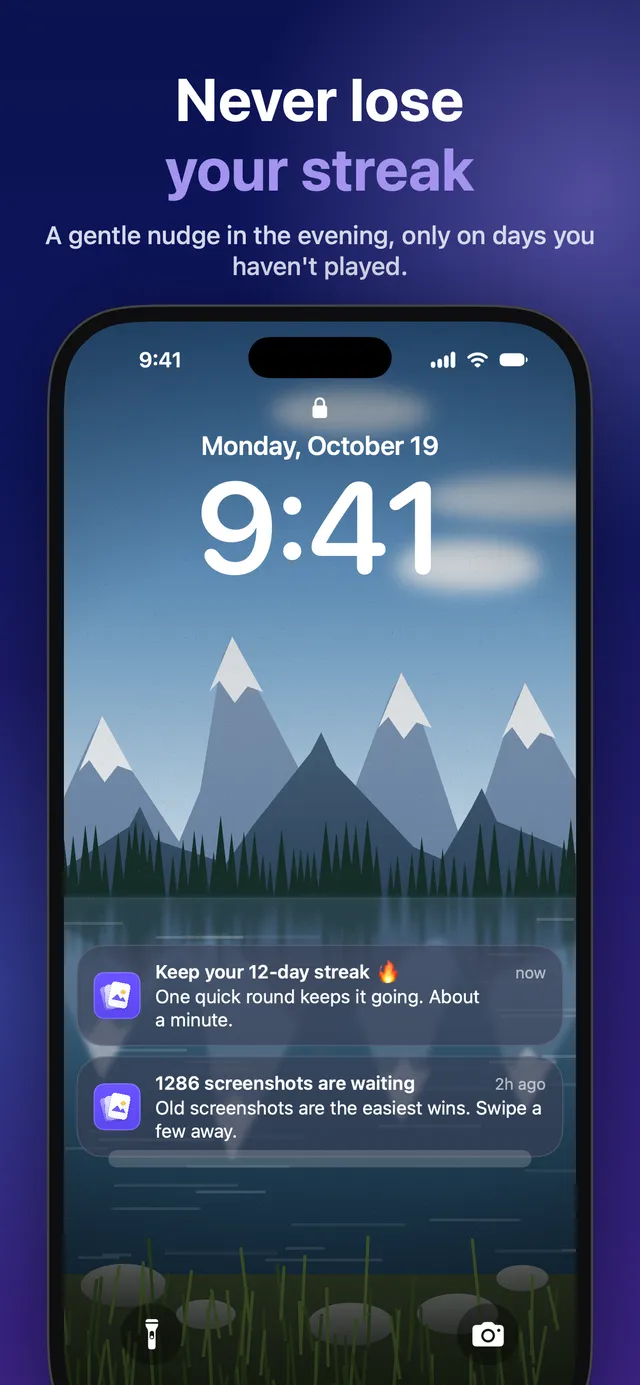
An optional evening reminder on days you haven't played, at a time you choose. Reminders are scheduled on your device and can be turned off in Settings.
Your photos stay on your device
No account and no sign-up. Photos and videos are shown, deleted and shrunk on your iPhone or iPad and are never uploaded. Limited photo access works too.
How it works
One round, about a minute
Pick a deck
Start with Quick 20 or choose a deck. A round has 20 cards (12 in Big videos). Photos you kept before don't come back.
Swipe
Left to delete, right to keep. Quick decisions in a row build a combo up to ×5, and the counter shows how much space the round will free.
Review
The results screen lists everything you marked. Tap any item to keep it, or touch and hold to see it larger.
Confirm
Delete the marked items with one iOS confirmation, save smaller copies instead, or keep everything this time.
Keep going
The space you freed counts toward today's goal and your streak, and new badges show up on the home screen.
Free and Pro
Play free, or go Pro for unlimited rounds
Free
- 3 rounds a day
- Quick 20, Screenshots and This month decks
- Review, delete, smaller copies, daily goal, streak and badges
- No ads
Pro
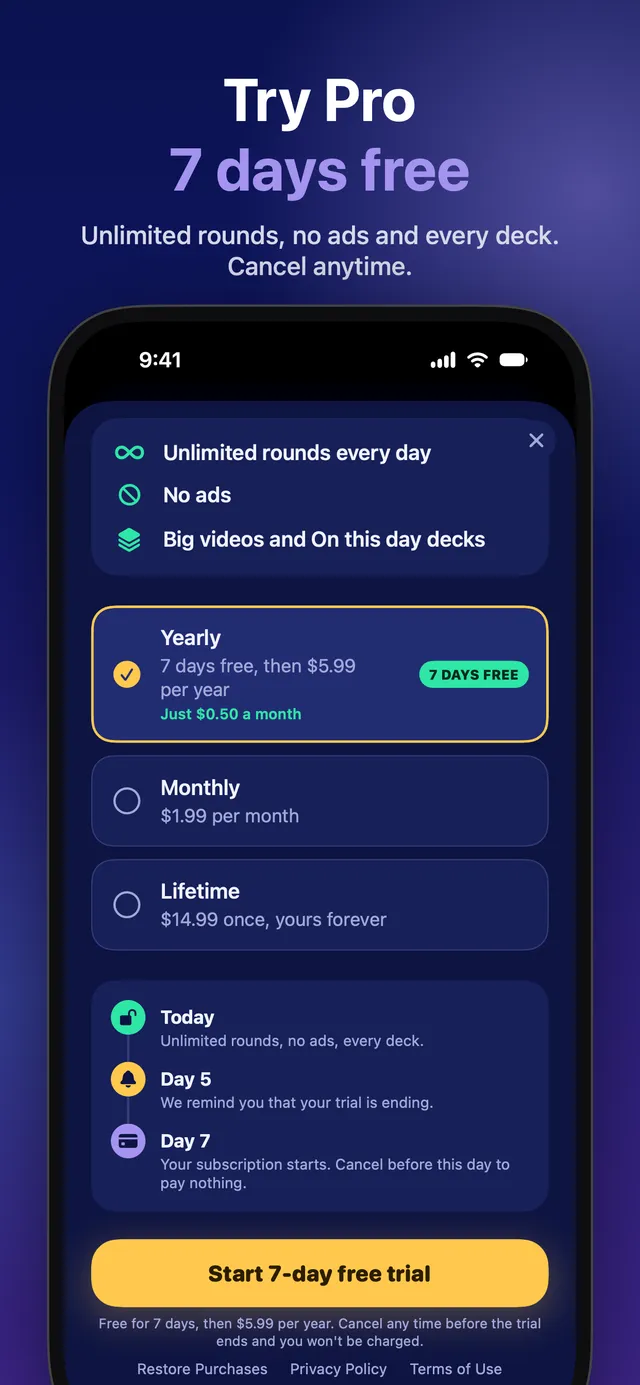
- Unlimited rounds every day
- All five decks, including Big videos and On this day
- Monthly or yearly subscription, or a one-time lifetime purchase
- The yearly plan can start with a free trial for new subscribers
Prices are shown in the app in your local currency before you buy. Subscriptions renew automatically unless cancelled at least 24 hours before the end of the current period or free trial; manage them in Settings › Apple Account › Subscriptions. The lifetime plan is a single purchase with no renewals.
FAQ
Common questions
Is anything deleted while I swipe? Can I undo?
No. Swiping only marks a photo or video. You can undo your last swipe during the round, and at the end you see everything you marked: tap an item to keep it after all. Only when you tap Delete does iOS ask you to confirm, and if you decline, nothing is deleted.
Where do deleted photos and videos go?
To the Recently Deleted album in the Photos app, where iOS keeps them for 30 days. You can recover them there, or delete them for good to free the space straight away. After 30 days iOS removes them permanently.
Does Gallery CleanUp upload my photos?
No. Your photos and videos are shown, deleted and shrunk on your device and never leave it. The app has no account and no server that receives your photos. The usage statistics it can send contain counts and settings, never images, file names or where a photo was taken.
What changes when I save smaller copies?
Each marked photo is saved again as HEIC with its long side at most 3,024 pixels, and each video as HEVC at up to 1080p. The date, location and favourite mark are kept, and the original goes to Recently Deleted. Live Photos become still photos, edits are built into the copy, and copies are not added to the albums the originals were in. Items that would not get at least 10% smaller are left as they are.
Does it work with iCloud Photos?
Yes. Photos stored only in iCloud are downloaded when their card comes up, so a connection helps. Deleting from an iCloud Photos library removes the item on all your devices that use it. With Optimize iPhone Storage turned on, the size shown is the size of the original; the space used on the device itself goes down by less.
Can I use it with limited photo access?
Yes. With limited access the app only sees the photos you selected, and the home screen offers to choose more. To clean your whole gallery, allow full access in Settings › Apps › Gallery CleanUp › Photos, or tap Photo access in the app's Settings.
How many rounds can I play for free?
Three a day. When they are used up, new rounds are ready the next day. Pro removes the limit.
What does Pro include?
Unlimited rounds and the Big videos and On this day decks. You can choose a monthly or yearly subscription, or a one-time lifetime purchase. Prices are shown in the app before you buy.
Languages
This page in 39 languages
- English
- English (UK)
- English (Australia)
- English (Canada)
- العربية
- Català
- Čeština
- Dansk
- Deutsch
- Ελληνικά
- Español
- Español (México)
- Suomi
- Français
- Français (Canada)
- עברית
- हिन्दी
- Hrvatski
- Magyar
- Bahasa Indonesia
- Italiano
- 日本語
- 한국어
- Bahasa Melayu
- Nederlands
- Norsk
- Polski
- Português (Brasil)
- Português (Portugal)
- Română
- Русский
- Slovenčina
- Svenska
- ไทย
- Türkçe
- Українська
- Tiếng Việt
- 简体中文
- 繁體中文